
Help / SEO Tests
SEO Tests
Traffic goes up and down for all sorts of reasons: the season, a Google update, a sale. So when you change a page, it's hard to tell whether your change did anything. An SEO test answers that. It compares the pages you changed with how they did before, or with similar pages you left alone, and tells you whether the difference is real.
What you see
You'll find Tests under Improve. It opens on the Brief of what's ready for you to decide, followed by tests still collecting data, drafts and recent decisions. The chips under the headline switch views: All tests, Ready, Collecting, Drafts and Decided each show a table of those tests, with a count. New test sits at the end of the row.
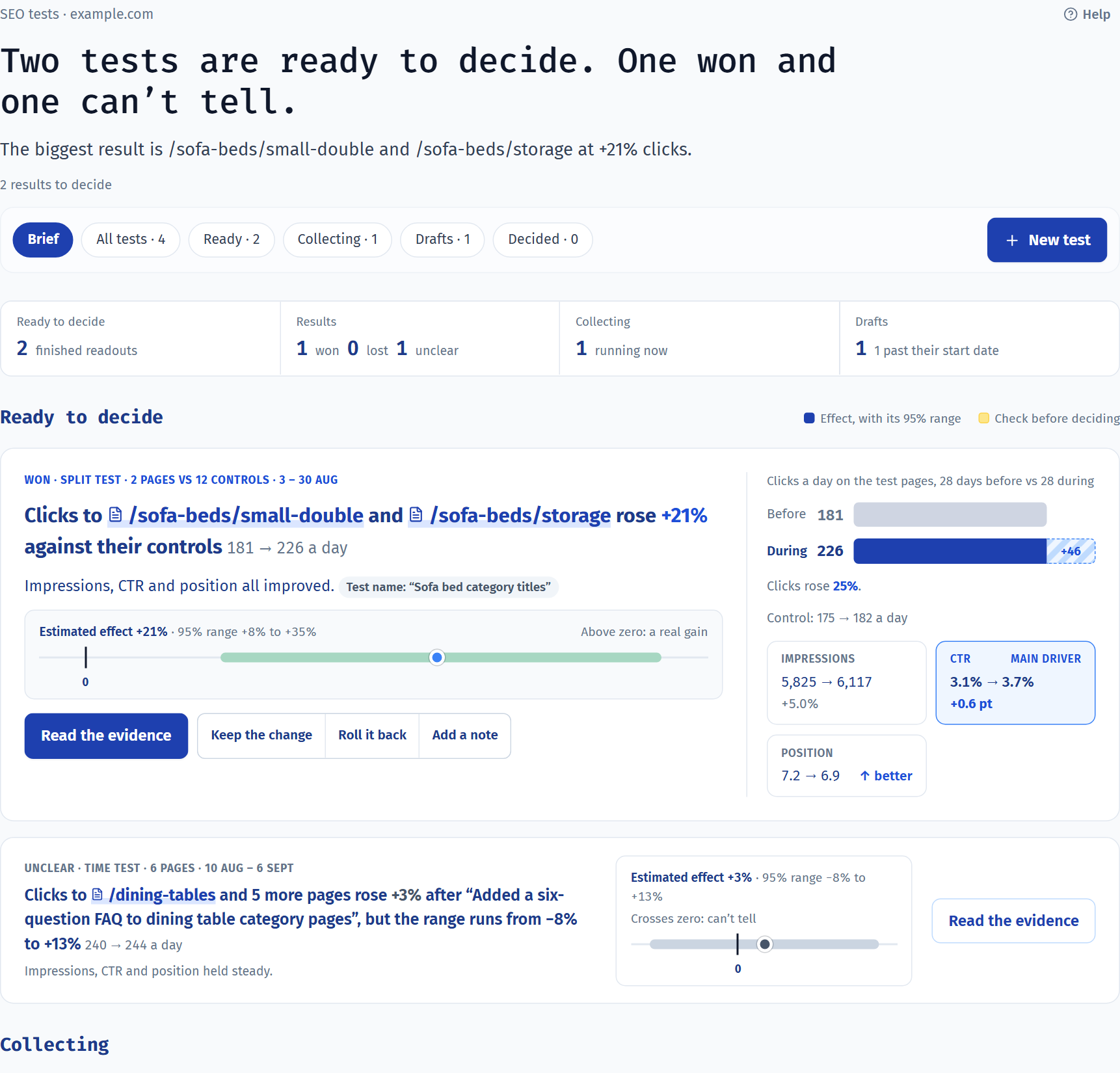
- Ready to decide
- Tests with enough data for a result. Each card says Won, Lost or Unclear, shows the before and during numbers, and gives the estimated effect with a 95% range: the span the true effect very likely falls in.
- Check before deciding
- Warnings worth reading first, such as a move that started before your change, another test on the same pages, or missing days.
- Collecting
- Running tests, and how close each one is to a result. They stay grey until the result is final, so you're not tempted to call it early.
- Drafts and decided
- Tests you've set up but not started yet, and tests you've already decided on, with your note.
Common jobs
Test a change on a group of pagesCompare the pages you changed with similar pages you didn't. Anything that hits both, like a Google update, cancels out. 5 min
- Open Tests and select New test.
- In Purpose, fill in Test name, Hypothesis and Change description. For example: “Add the size range to sofa bed category titles. More specific titles will earn more clicks without losing impressions.”
- In Method, pick Split cohort. A cohort is just a group of pages.
- In Scope, pick Pages, then Automatic matching. Paste the pages you changed under Paste starting page URLs, one per line. One page is enough to start.
- Select Preview matched cohorts and read the assessment. It tells you how well the two groups match, the smallest uplift the test can spot, and how many weeks it'll need.
- In Dates & metrics, set Change went live, how long to run the test, and the Primary metric.
- In Review, tick Start or schedule this test immediately and select Create and start. Or select Save draft to start it later.
You only need to give it the pages you changed. ConsoleKit finds similar pages on your site and splits them into a test group and a control group (the pages you leave alone) for you.
Automatic matching needs at least eight well-matched pairs. To be matched, a page needs at least 100 impressions and seven active days in the reference period.
Measure a site-wide changeFor a change that went live everywhere at once, like a new template or faster pages. 3 min
- Select New test and fill in Purpose.
- In Method, pick Time-based, and in Scope pick Whole site.
- In Dates & metrics, set Change went live and pick a Reference to compare against: Previous period or Year over year.
- Check the plan and select Create and start.
A time-based test has nothing to compare against at the same time. If a Google update, a sale or a seasonal swing lands in the same weeks, it'll show up in your result. Seasonal sites should use year over year.
Choose your own test and control groupsFor testing searches, or when you already know which pages to compare. 5 min
- Select New test, pick Split cohort, then Queries or Pages in Scope.
- Select Assign manually.
- Paste the ones you changed into Test cohort and the ones you didn't into Control cohort, one per line.
- Check Cohort health. It counts what's on each side and flags any duplicates to sort out.
A good control group behaved like your test group before the change: similar traffic, similar rankings, the same kind of page.
Decide on a finished testRecord whether you're keeping the change, so the result doesn't get lost. 2 min
- Open Tests. Finished tests wait for you under Ready to decide.
- Read the result and its 95% range. A test is Won when the whole range is above zero, and Lost when it's all below.
- Read Check before deciding for anything else that could explain the result.
- Select Keep the change or Roll it back, and add a note if you like. To jot something down without deciding, use Add a note.
End a test earlyStop measuring if the change was reverted or something else spoiled the test. 1 min
- Open the test from the Brief or from All tests.
- Select End early. ConsoleKit refreshes the evidence one last time and stops checking it each day.
A test you end early keeps a provisional result. Treat it as a hint, not a verdict.
Good to know
- Results need 14 complete days. A test needs at least 14 complete days both before and during the change before it shows a range. Until then, you'll see how things are moving, but no verdict.
- Groups are locked when a test starts. Once a test starts, its pages or searches can't change, so the result always describes the same set. You can still edit drafts.
- A lower position is an improvement. Position 3 is better than position 8, so for average position a smaller number counts as a win, and results read that way.
- Tests update once a day. Running tests are checked again each day as new Search Console data arrives. Only Admins can delete a test.
- Copy as Markdown. The copy icon beside the headline, and the one at the end of each story card's actions, puts it on your clipboard as Markdown: the headline in bold, the sentence under it and the key numbers, with the report and property named on the last line. Paste it straight into Slack, Teams, an email or a doc.
| Pages you can supply for automatic matching | 200 |
|---|---|
| Matched pairs needed for automatic matching | 8 |
| Values per group when assigning manually | 500 |
| Complete days needed in each period | 14 |
| Decision note length | 1,000 characters |
Last reviewed and updated