
Help / Queries and Pages
Queries and Pages
A query is what someone typed into Google before your site showed up. A page is one URL on your site. These two tables list every query and page Search Console reports for you, with shortcuts that pull out the ones worth your time, like searches where you're nearly on page one.
What you see
Queries and Pages open with a one-line headline, then a single table of everything Google reported for that range. The bar above the table sets what you're looking at.
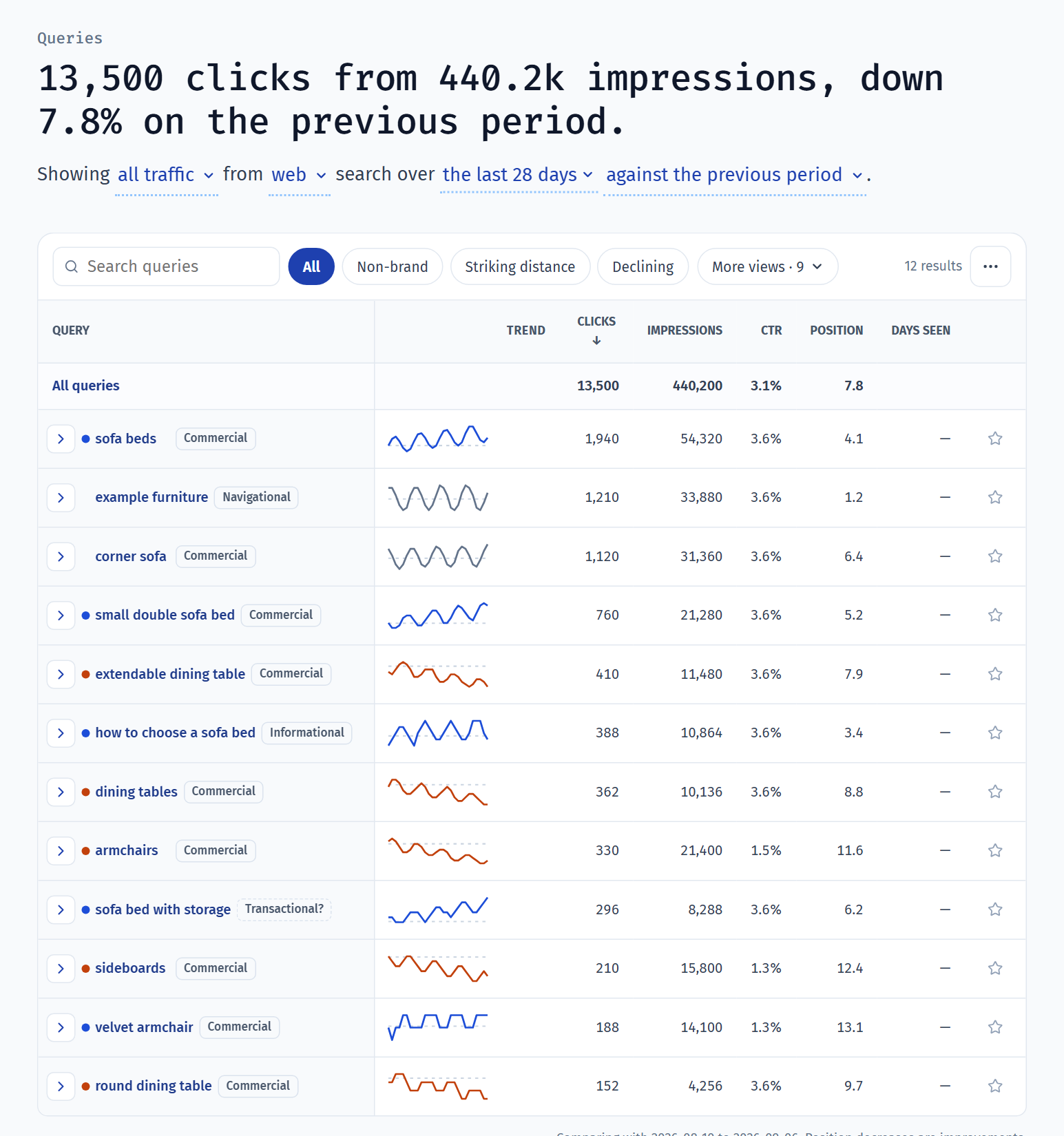
- Scope
- On the right of the table bar, All traffic, Web, Last 28 days and vs previous period set the segment, search type, dates and comparison. On Pages it also picks pages or directories, and a page type. A chosen segment is filled in blue, so a filtered table never reads as all traffic.
- Quick views
- The bar above the table shows All and three views. The bar learns the ones you use most. Every other view is in More views, grouped into Brand, Rank, Change, Shape and Act on, with a line on what each includes. On Queries an Intent group shows only informational, commercial, transactional, navigational or local searches.
- Search
- Type in the search box to keep rows that contain your text. Select Regex to match a pattern instead, the same syntax Search Console accepts:
^sofafor searches that start with sofa,bed|bedsfor either word,\?$for searches ending in a question mark. Matching ignores case either way. - Tags
- Each query shows its intent, such as Commercial, and each page its type, such as PLP. A dashed tag with a question mark means the label is a best guess worth checking, and a person icon means your team set it. Select a tag to show only that type or intent.
- Clicks by type
- On Pages, a row above the table shows how much of your traffic each page type brings in, and how that changed. It follows the search box, so typing a word shows which types of page match it. Select a type to filter the table to it.
- Table
- Each row has a small trend line, then clicks, impressions, CTR and position. With a comparison chosen, a blue or orange dot marks rows up or down 5% or more, a dashed line shows the earlier level, and hovering a number shows its change. The trend and dots follow whichever metric you sort by. The More actions button holds the heatmap, CSV download and help.
- Why it moved
- With a comparison chosen, the arrow at the start of a row opens a short explanation of what changed and the main reason.
- Drawer
- Select a query or page to open its detail. The dates and comparison are set in a sentence at the top, then tiles show each metric, with a settings button on the chart for line or bars, weekends and forecast. Below are the pages or searches it's connected to, and a Why it moved card. The star adds it to your watchlist, and the ⋯ menu holds Draft content, Notes, Copy link, the CSV download and the cannibalisation check.
Common jobs
Find quick winsSpot searches just off page one, and pages that don't get clicked as often as they should. 2 min
- Open Queries and select Striking distance. These rank between 10 and 20 on average, just off the first page, where a small push pays off most.
- Open More views and select CTR opportunity for searches that get clicked less often than usual for their position. A better title and description is often the fix.
- Select a search to see which of your pages ranks for it, then improve that page.
See what's growing or decliningList the searches or pages that gained or lost the most. 1 min
- On the table bar, choose vs previous period or vs same period last year.
- Select Declining on the bar, or Growing or New visibility from More views.
- Sort by clicks, impressions, CTR or position. The change column and these views follow whichever you sort by.
Last year is lined up by weekday unless your dates are whole months, so a Monday is compared with a Monday.
Growing and declining need a complete earlier period to compare with.
Understand why a page movedSee whether a page lost impressions, clicks per impression or ranking. 1 min
- Open Pages with a comparison chosen on the table bar.
- Select the arrow at the start of the row, labelled Why it moved.
- Read the tiles and the main reason. Small changes are labelled as small, rather than given a reason they don't need.
Keep a watchlistStar the searches and pages you care about, and find them again in one click. 1 min
- Open a search or page and select the star to add it to your Priority list.
- Open More views and select Priority to see only starred rows. Use it often and it moves onto the bar.
Find content ideasUse the questions and longer searches people already find you for. 2 min
- Open Queries, then More views, and select Questions for searches that start with how, what, why and the like.
- Select Long-tail in the same list for searches of four or more words. They're often very specific about what someone wants.
- Open a page from Pages, open the ⋯ menu in its detail and select Draft content to start a Content draft for that page.
Good to know
- Clicks and impressions aren't search volume. They count how often your site showed up and got clicked in Google, not how many people searched in total.
- Google hides some searches. Search Console leaves out rare and private searches, so the Queries table adds up to less than your site's total clicks.
- Clicks by type covers all your traffic. The Clicks by type row adds up every page, so when a segment is selected it says so instead of showing a mix that wouldn't match the table.
- Brand views need segments. Brand and Non-brand use your saved brand segments. Set those up in Segments first.
- Copy as Markdown. The copy icon beside the headline puts it on your clipboard as Markdown: the headline in bold, the sentence under it and the key numbers, with the report and property named on the last line. Paste it straight into Slack, an email or a doc.
- Every page has a history. Open a page in the drawer and choose Page history to see everything ConsoleKit knows about that URL on one timeline: signals, changes, drafts, SEO tests and notes, newest first. Work on this there starts a Content draft aimed at the searches the page lost the most clicks on.
| Striking distance | Average position 10 to 20 |
|---|---|
| Long-tail | Four or more words |
Last reviewed and updated