
Help / Events
Events
Instead of digging through charts every morning, Events does the reading for you. It writes a short brief of what changed in your search traffic, shows you the evidence behind it, and keeps a list of signals (changes it spotted in your data) waiting for you to decide what to do.
What you see
When you open Events, you'll see a headline and totals, then the stories behind the change, then the signals waiting for a decision. Chips under the headline switch view: Brief, All events, New, High priority, Monitoring and Results.
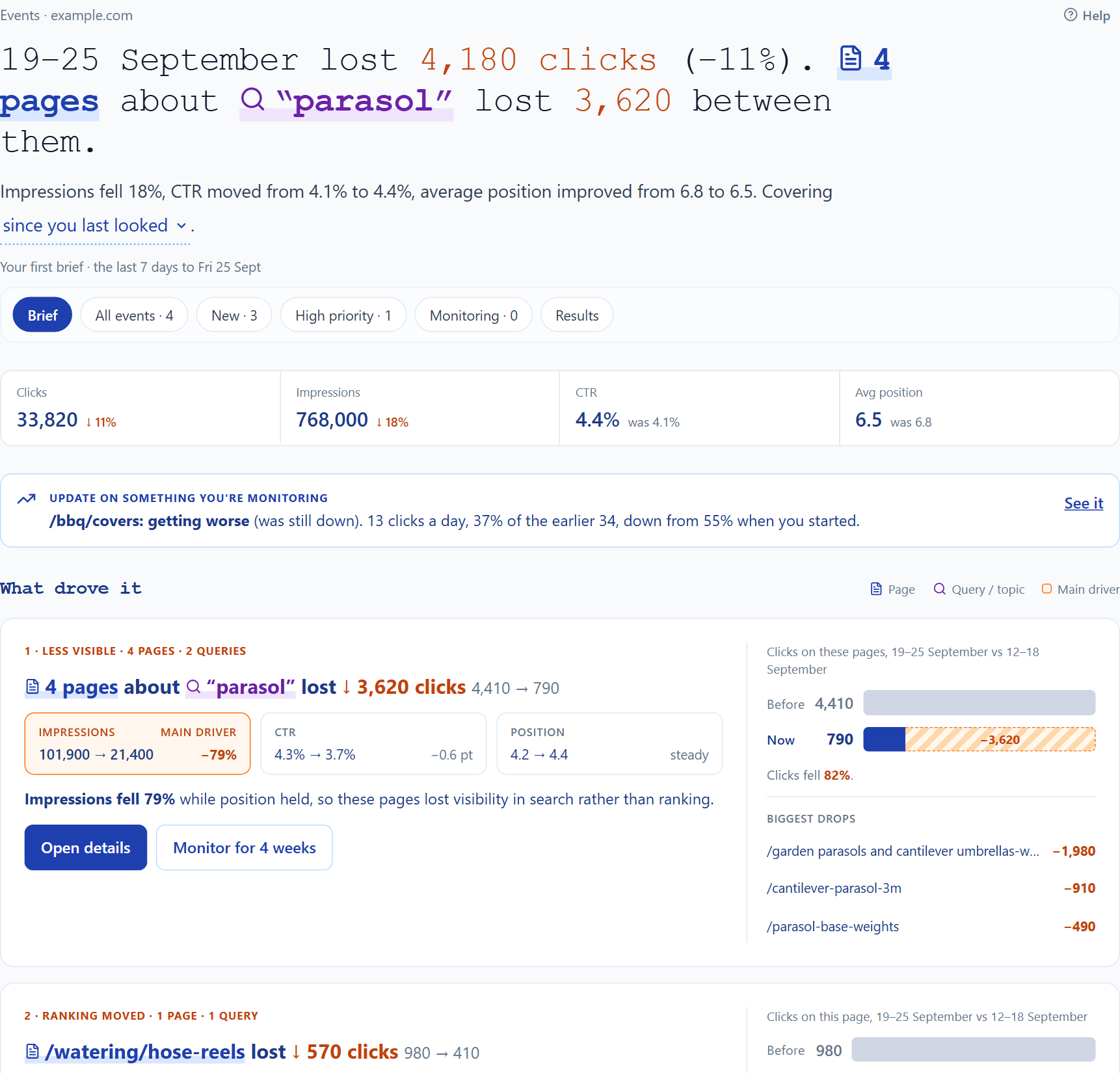
- Period
- Pick the period in the sentence: since you last looked covers the days that arrived since your last visit, this week is the last seven complete days, and a date range uses the dates you pick.
- What drove it and What grew
- Story cards for the pages and searches that moved most, grouped when they share a topic. Each one says what happened in plain numbers.
- Signals to decide
- Changes ConsoleKit spotted that nobody has decided on yet, most serious first.
- What you’re monitoring
- Fixes in progress with their owner and due date, plus signals and stories you're keeping an eye on.
Common jobs
Find out why clicks changed this weekRead what moved and what the evidence says, without building a report. 2 min
- Open Events and pick this week in the sentence.
- Read the headline, then the What drove it cards.
- Open a story. What the evidence says checks whether the move lines up with an edit to the page, a Google update or the same weeks last year.
- Select Investigate on a page or search to open its detail for the same dates.
Stories group pages that share words in their addresses, like all your sofa bed pages. That's to make reading easier. It doesn't mean the pages moved for the same reason.
Decide what to do with a signalPlan a fix, keep an eye on it, or put it aside. 2 min
- Open a signal from Signals to decide.
- Pick Fix to plan a fix. Say what'll change, who's doing it and by when.
- Pick Watch and it'll come back to your brief after a while, showing how it moved.
- Pick Snooze or Not useful to put it aside.
Fix and Watch are shared with your whole workspace. Snooze and Not useful only affect you.
See whether a fix workedNote when a fix went live and compare before and after. 2 min
- In What you’re monitoring, open the fix.
- Set Shipped on to the day it went live and select Mark shipped.
- Come back later and select See fix results. Each fix is compared over 14 and 28 days either side of the day it shipped.
Results show what happened after the fix. They don't prove the fix caused it. If you need proof, run an SEO test.
Keep an eye on a dropFollow a story's pages for four weeks, with nothing else to set up. 1 min
- On a story card, select Monitor for 4 weeks.
- ConsoleKit follows the story's pages and tells you whether they're back to normal, recovering, still down or getting worse.
- When that changes, the update goes to the top of your next brief.
Look through every signalSee the full list, including ones you've already decided on. 1 min
- At the end of the brief, select See all signals, or pick All events on the chips.
- Narrow the list in the sentence by status, severity, type and how far back to look. New, High priority and Monitoring are shortcuts, and Prioritised feed or By type changes the order. Open any signal to see its evidence.
Good to know
- It never guesses a cause. Headlines and stories stick to the numbers. When the evidence lines up with a move, Events tells you, and when it can't tell, it says so.
- Only complete days are used. If either period is missing days, changes are held back and you'll see why.
- Your last visit is remembered per browser. Since you last looked is saved in this browser, so your phone and your laptop each keep their own.
- Copy as Markdown. The copy icon beside the headline, and the one at the end of each story card's actions, puts it on your clipboard as Markdown: the headline in bold, the sentence under it and the key numbers, with the report and property named on the last line. Paste it straight into Slack, Teams, an email or a doc.
- Page history and Work on this. A story about a single page has a Page history link, which opens everything that has happened to that page on one timeline, and a Work on this button. Work on this opens a Content draft for the page with the story's searches (up to 10) already added as targets, so nothing is typed twice.
| Days covered by Since you last looked | Up to 14 |
|---|---|
| Monitored stories per property | 10 |
| Longest snooze | 30 days |
| Fix results windows | 14 and 28 days |
Last reviewed and updated