
Help / Properties
Properties
A property is one website, or one part of a website, that you've connected from Google Search Console. If you look after several, checking each one is slow. The home page lines them all up and tells you which have moved, so you know where to start.
What you see
The home page is one sentence and one list. The sentence tells you how all your sites did, and the list shows every property and bundle, biggest first.
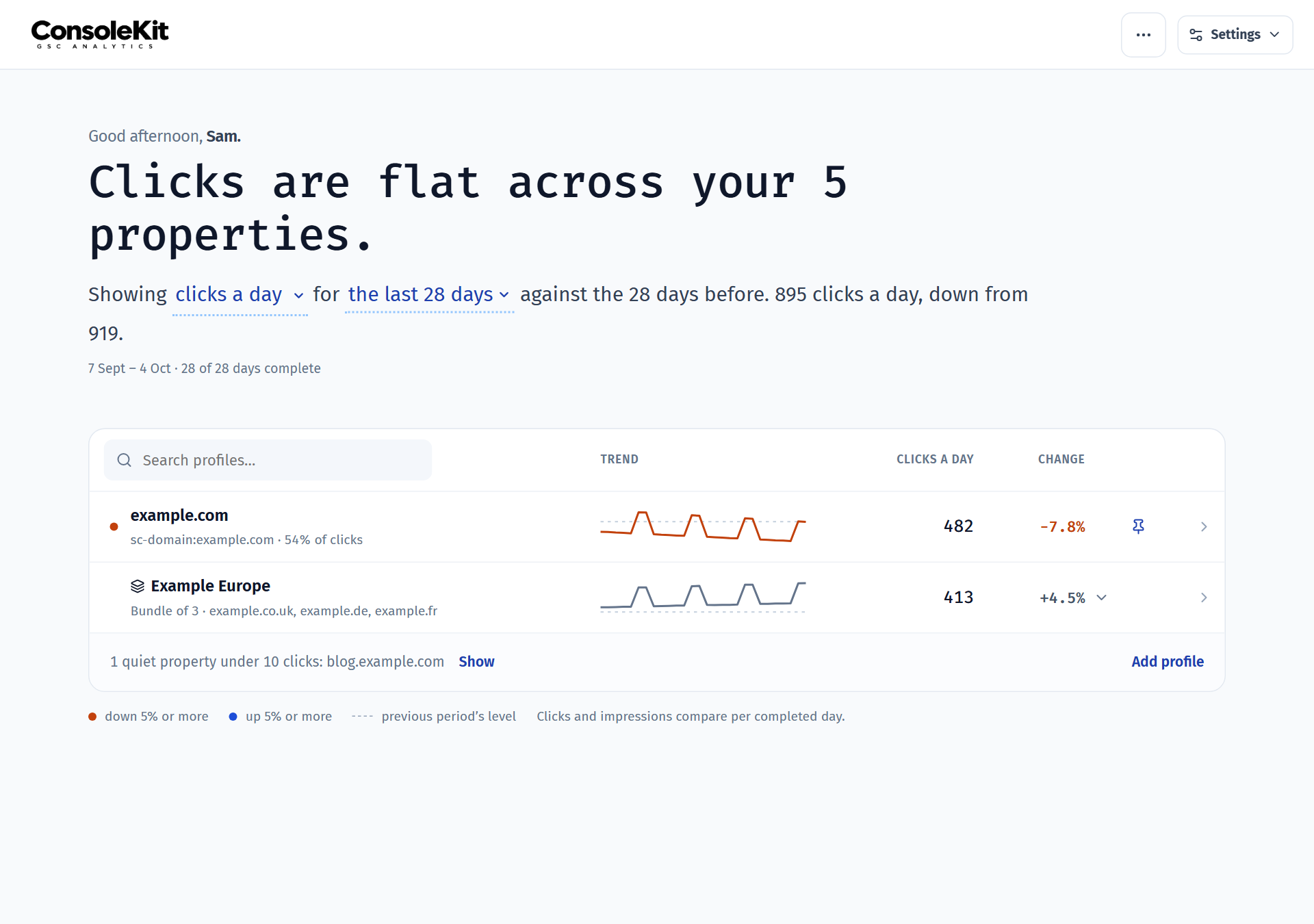
- The sentence
- Says whether clicks are up, down or flat across all your sites. The underlined words are the controls: select them to change the metric or the date range, and ConsoleKit will remember the metric in this browser.
- The list
- One row per property or bundle, with pinned ones at the top and the rest biggest first. Each row has a small trend line, today's value and the change. The dashed line is where the previous period sat.
- The coloured dots
- An orange dot means the property is down 5% or more, and a blue dot means it's up 5% or more. No dot means it's steady.
- More menu
- The More actions button at the top holds Create bundle, Download CSV and Help.
Common jobs
Check your sites at the start of the weekSee at a glance what moved and which site to open first. 2 min
- Open the home page and select the date range in the sentence, for example the last 7 days.
- Read the sentence first. It tells you whether your sites are up, down or flat overall.
- Look for orange dots in the list. Those properties are down 5% or more per complete day.
- Select a property to open its Overview.
Add a propertyConnect another Search Console property you have access to. 3 min
- On the home page, select Add profile at the bottom of the list. This opens Manage properties.
- Type in the filter to find the property, for example
.caorexample. Use the accounts on the left to show one Google account at a time. - Select Add and open next to the property, for example
example.com. To add several at once, tick them and select Add to workspace. - Setup then offers to turn on Changes and to set your brand terms, so you get Brand and Non-brand segments straight away. You can skip either and come back later.
- Published data becomes available with its current coverage while the initial import continues. Recent dates are prioritised before older history. Once the initial core import has finished, scheduled refreshes can fetch newly available dates while historical query-page relationships continue importing. During busy periods, work may wait in the queue; ConsoleKit automatically recovers delayed starts. You do not need to remove and add the property again.
Press Ctrl+K (Cmd+K on a Mac) anywhere to jump to a property. If it isn't in your workspace yet, press Enter to add and open it.
Combine several sites into a bundleReport on a group of properties, such as all your country sites, as if they were one. 2 min
- Open More actions and select Create bundle.
- Give it a name, like “Example Europe”, and a description if you want one.
- Pick the properties to include, for example
example.co.uk,example.deandexample.fr, and save. - The bundle shows up as one row. Select the arrow next to it to see the properties inside, or select the row to open them as one combined report.
If one property brings in most of a bundle's clicks, the bundle's Overview will tell you its total mostly follows that one site.
Pin the properties you check mostKeep important sites in view, even when their traffic is small. 1 min
- Hover over a property in the list and select its pin.
- Pinned properties sit at the top of the list and always stay in view, however little traffic they get.
Good to know
- Clicks are compared per complete day. Google takes a few days to finish each day's numbers, so this week might have fewer complete days than last week. ConsoleKit compares clicks and impressions per complete day, so a short week doesn't look like a drop.
- Quiet properties are tucked away. Properties with fewer than 10 clicks in the period, unless you've pinned them, fold into one line at the bottom of the list. Select Show to see them.
- Bundles are never counted twice. The sentence for all your sites only adds up individual properties, and a property inside a bundle is listed under the bundle, not twice.
- Copy as Markdown. The copy icon beside the headline puts it on your clipboard as Markdown: the headline in bold, the sentence under it and the key numbers, with the report named on the last line. Paste it straight into Slack, Teams, an email or a doc.
| Orange dot | Down 5% or more |
|---|---|
| Blue dot | Up 5% or more |
| Quiet property | Under 10 clicks in the period |
Last reviewed and updated