
Help / Content
Content
Writing a good page is easier when you know what people search for to find it. Content is an editor with your Search Console data built in. You can bring in an existing page or start a new one, see the searches it should cover, check it before it goes live, share it with a client for sign-off, and copy the finished version to your website.
What you see
You'll find Content under Improve. Each draft is a document for one page or article on one property, with a side panel of evidence and checks.
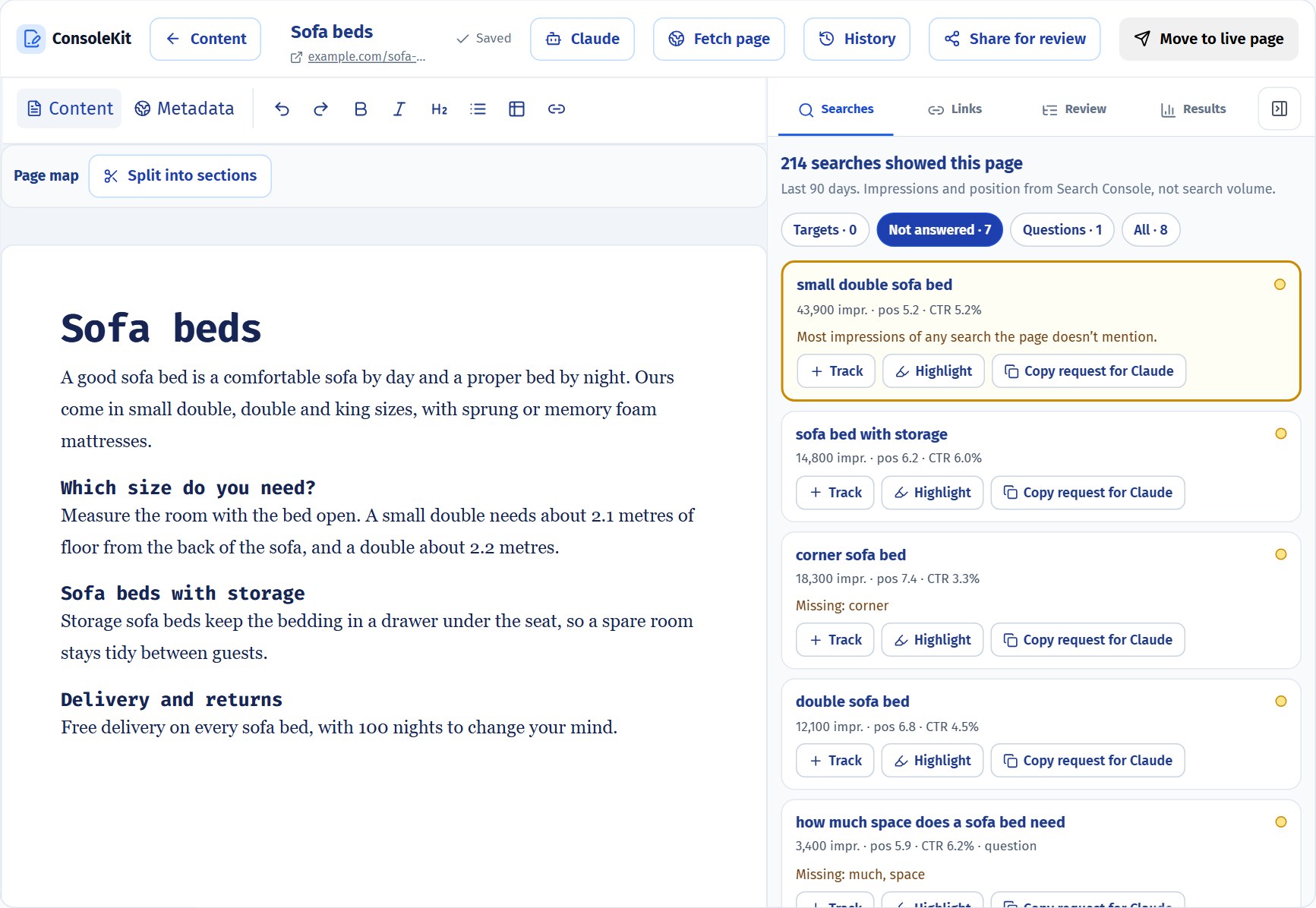
- Editor
- Your draft, split into sections when a page has several blocks of content. Protected sections stay locked until you unlock them.
- Side panel
- Searches for what people search to find the page, Links for links in and out, Review for the checklist and comments, and Results for how the page did after going live.
- Metadata
- The title, description and address of the page, with a preview of how it'll look in Google.
- Header
- Fetch page, Share for review, Move to live page and History.
Common jobs
Start a draft for a new pageWrite a short brief and open a blank draft. 3 min
- Open Content and select New draft.
- Pick the Content type and fill in Working title, Topic, Audience, Goal and Tone. For example: “A buying guide to sofa beds for small flats”.
- Select Open workspace.
Stuck on the brief? Let AI fill the brief fills in the fields for you. It uses your workspace's AI allowance.
Improve an existing pageBring a live page into the editor and work on it there. 3 min
- Find the page in Pages and select Draft content. The draft is now linked to that page.
- Select Fetch page, then Main content for just the body, or All content for everything on the page.
- If the page has several blocks of content, select Split into sections.
- Edit away. Your draft saves as you go.
Main content uses one AI request to strip out menus and footers. All content doesn't use AI.
Write for the searches the page getsMake sure your draft covers what people search for to find it. 3 min
- Open the Searches tab. It lists the searches the page has shown up for in the last 90 days.
- Filter to searches your draft doesn't mention yet, or to questions.
- Check which sections cover which searches, and which other pages on your site compete for the same ones.
Check a draft before it goes liveCatch problems before anyone else sees them. 2 min
- Open the Review tab for the checklist: open comments, section lengths, wording you must include, title and description length, and structure.
- Open Links and run the link check to find broken links.
- Open Metadata to see how the page will look in Google.
Send a draft to a clientShare a link for sign-off, comments or suggested edits. They don't need an account. 2 min
- Select Share for review.
- Under What can they do?, pick Read only, Comment or Suggest edits.
- Choose when the link expires and, if you like, add a password of at least 8 characters.
- Select Create and copy link and send it to your client.
- Their comments and suggestions arrive in the Review tab. Accept or reject each suggested change.
Clients never see searches, keywords, metadata or your team's comments. Protected sections stay locked for them too.
Move edits to the live pageCopy each changed section into the right place in your CMS (the system that runs your website). 3 min
- Select Move to live page.
- Work through the sections in the order they appear on the live page. Each one shows where it goes and what changed.
- Copy a section as rich text, HTML or plain text and paste it into your CMS.
- Tick Mark as moved. Sections that are already on the live page tick themselves off after the next fetch.
Go back to an earlier versionCompare with, or restore, any saved checkpoint. 1 min
- Open History in the header.
- Compare any checkpoint with your current draft, or restore it. Don't worry, your current draft is saved as a checkpoint first.
- Before a big change, select Save checkpoint to save a named version.
Good to know
- Edits from Claude show up for you to review. Edits made through MCP appear highlighted in an open editor, and you keep or undo each paragraph.
- Two people editing at once. If the draft changed somewhere else while you have unsaved edits, the editor stops and asks whether to load the latest version or keep yours.
- Search numbers come from Search Console. Clicks, impressions and positions are your own Search Console data, not estimates of search volume from another tool.
| Comments per draft | 200 |
|---|---|
| Active review links per draft | 20 |
| Reviewers per link | 25 |
| Comments per reviewer | 50 |
| Longest review link expiry | 90 days, or never |
Last reviewed and updated