
Help / Changes
Changes
Someone edits a title, a developer ships a new template, a page quietly starts redirecting. These things happen all the time, and they're easy to miss. Changes visits your pages on a schedule, notices when something meaningful is different, and shows you how those pages did in Google afterwards.
What you see
Changes records each meaningful edit it finds: titles, descriptions, headings, content, links, structured data, redirects and status codes. When you open it, you'll land on Impact. The other views are chips under the headline, with admin actions such as Crawl now and Settings at the end of the row.
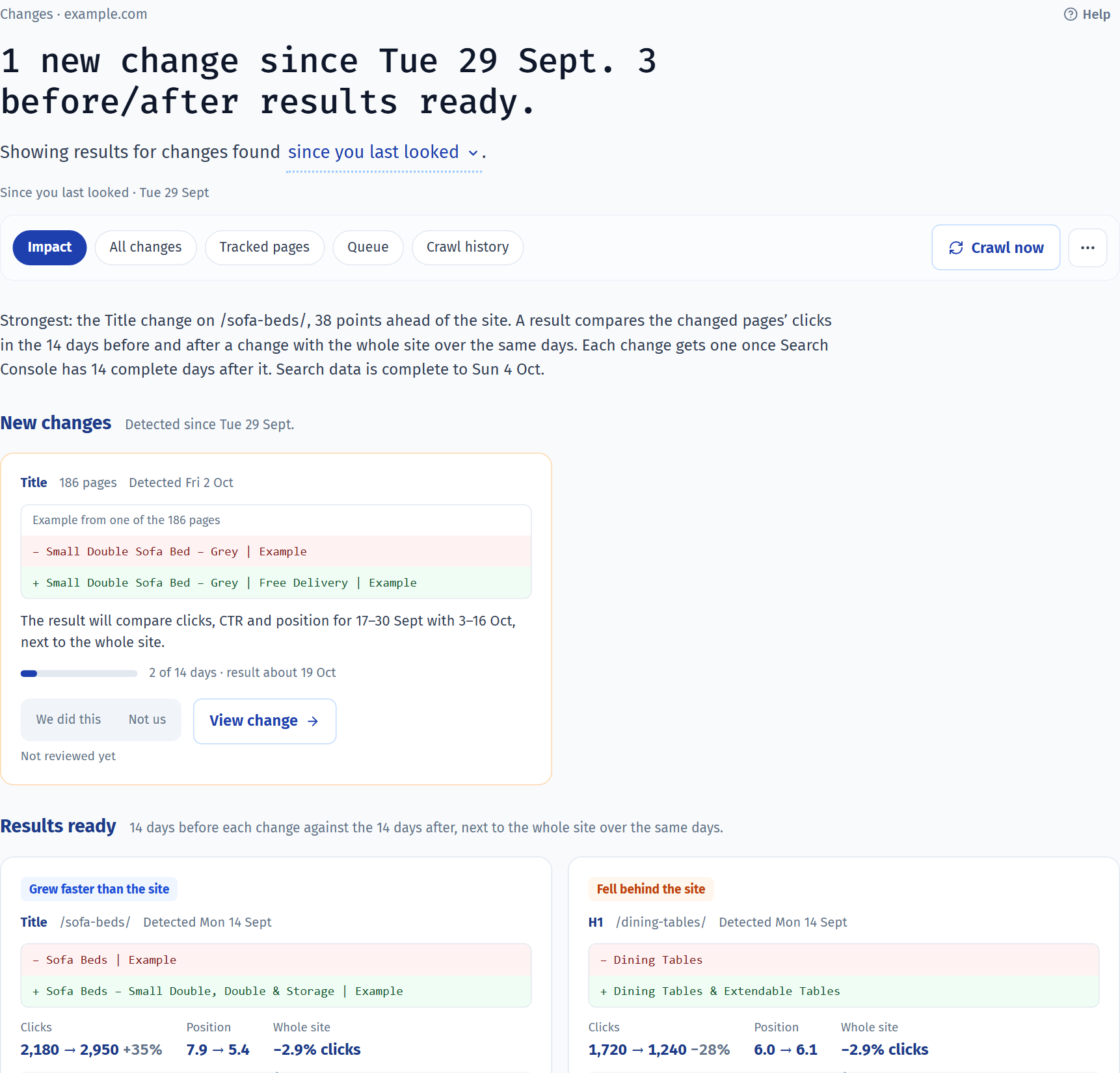
- Impact
- Pick since you last looked or in a date range in the sentence. You get one card per change, with a before and after result: how the changed pages' clicks moved compared with the rest of your site, over the 14 days either side.
- All changes
- Everything found in the last 30 days, grouped together when one edit touched lots of pages.
- Tracked pages
- Every page Changes keeps an eye on, how often it's checked, when it was last checked and when it's next due.
- Queue and Crawl history
- Pages waiting to be checked, and recent runs, including any pages that couldn't be reached.
Common jobs
Turn on Changes for a propertyStart saving copies of your pages, so later edits have something to compare with. 2 min
- Open Changes. If it's not set up yet, you'll see Start tracking meaningful site changes.
- Check Confirmed HTTPS crawl origin is your site's address, for example
https://example.com. - If you like, list your most important pages under Watched pages, one per line. These are checked every day.
- Select Enable Changes. The first visit saves a starting copy of each page, and changes show up from the next visit on.
You don't have to wait for your Search Console data to finish loading. Turn Changes on now, and the first visit starts by itself once it's ready.
See whether a change helpedCheck how the changed pages did after an edit, compared with the rest of your site. 2 min
- Open Changes on Impact and pick since you last looked or in a date range in the sentence.
- Read each card's result. Grew faster than the site and Fell behind the site mean the pages did at least 10 percentage points better or worse than your site overall. Moved with the site means the gap was smaller than that.
- A card keeps collecting until all 14 days after the change have arrived from Search Console.
- Open a card to see exactly what changed, and every page it touched.
A result tells you what happened after a change. It doesn't prove the change caused it. If you need proof, run an SEO test.
Mark which changes were yoursTell your team's releases apart from edits someone else made. 1 min
- On a card in Impact, select We did this or Not us.
- Everyone in your workspace sees the label and who set it. Select it again to clear it.
Labels never change a result. They just make it quicker for a team to review a week of changes.
Compare two versions of a pageSee exactly what was edited on a page, and when. 2 min
- Open a page from a change to see its Page history.
- In Timeline, expand a row to see that edit's before and after.
- Open Page content to read the saved text from any visit.
- Use Compare changes to put two versions side by side. Turn on Changes only to hide everything that stayed the same.
Check a redirect migrationMake sure pages you've moved end up somewhere sensible. 3 min
- Open a redirect change from Impact or All changes.
- You'll see each old URL and where it finally lands. When lots of pages moved the same way, like a renamed folder, they're grouped under that pattern.
- Look for warnings on each move: loops, long chains of redirects, redirects to the homepage, temporary redirects, or a new page with different content.
- Check each old URL's clicks to see which moves matter most.
- Moved a whole section? Track it as a migration to see whether the clicks followed.
Track a site migrationFollow a batch of moved pages as one project and see whether their clicks came across. 2 min
- Open Changes and select Migrations.
- If lots of redirects appeared on the same day and follow the same pattern, you'll see a suggestion at the top. Select Track as a migration.
- Or select Track a migration and choose where the list of moves comes from: the redirects Changes found, a redirect map you upload as a CSV (old URL, new URL), or a rule like
/blog/*→/journal/*. - Enter the go-live date if you know it. If you don't, leave it empty and we'll work it out from the data.
- Select Start tracking. The migration appears in the list straight away and shows Working on it while we set it up, usually for less than a minute. You can leave the page.
Changes starts checking every old and new URL in the map daily, so problems show up within a day of launch.
Read a migration reportSee how much traffic made the move, and which redirects lost it. 3 min
- Open a migration from Migrations. The headline tells you what share of the old pages' clicks the new pages have picked up.
- The sentence below compares that with pages that didn't move. If the whole site dipped, the move isn't blamed for it.
- The chart shows the handover day by day: old URLs fading, new URLs rising. Switch it between Clicks, Impressions, CTR and Position to see each one move across.
- In Where the clicks went, select Needs attention to see the moves losing the most clicks. Open one to see which of its searches came across, and whether there's a better page to redirect to.
- Left behind lists old pages with clicks that have no redirect, new pages Google hasn't shown yet, and old pages still in Google.
The first read-out appears after 7 days of data. Search Console data arrives a few days late, so give a migration a couple of weeks before drawing conclusions.
Set a migration's go-live dateCheck a worked-out date, or pick your own from the chart. 2 min
- If you left the date empty, we look for the day the new URLs first showed in Google. When we can't see that, we look for the day the old URLs started to fall and for when the crawler saw the redirects.
- Open the migration. An estimated date shows as About, and the report explains what it rests on and the likely range, which is shaded on the chart.
- Compare it with the chart. Click a day or pick a date, then select Use this date. If the estimate looks right, select Keep this date.
- If the data doesn't point to a date, the report shows the last six months of old and new URLs so you can find the move yourself.
- To change a confirmed date, select Change next to it at the top of the report.
The report needs a date to compare before and after, so it stays on the chart until there is one.
Check your redirect map on launch dayMake sure every redirect does what the map says, the day you go live. 2 min
- Track the migration with Upload a redirect map before or on the day you launch.
- Open the migration and select Launch-day check.
- Fix the rows listed under To fix: redirects that land somewhere else, go through a chain, are only temporary, haven't been set up yet, or end on an error page.
- Missing from the map shows pages that earned clicks but aren't in your map. Download them as map rows and add them.
The check runs again each day as Changes recrawls the URLs, so you can watch the list shrink as fixes go live.
Write an update about a changeTurn a change into a message for a client, your team chat or a developer. 1 min
- Open a change and select Summarise with AI.
- Pick a format: Slack / Teams update, Client email, Executive brief or Developer handoff.
- Copy the draft and give it a read before you send it.
Summaries come out of your workspace's AI allowance.
Good to know
- How a migration's numbers are worked out. Clicks before and after are compared over the same number of days either side of go-live. If a page was redirected to one that already had traffic, like the homepage, only the extra clicks it gained are counted, and impressions work the same way. CTR and position on the chart leave those pages out, because they would show the existing page's figures rather than the moved page's. Pages with under 20 clicks before the move are grouped together, because their numbers are too small to judge one by one.
- Changes and Events are different. Changes looks at your website itself. Events looks at your Search Console data. Together they show what you changed and what happened in Google.
- The exact day of an edit isn't known. An edit went live somewhere between the last visit that saw the old version and the visit that found the new one. Both of those days are left out of the before and after periods, to keep the comparison fair.
- Pages are checked on a schedule. Important pages, and pages that just changed, are checked daily. Others are checked weekly or monthly. Changes always follows your robots.txt.
- Some sites block crawlers. If your site's security blocks Changes, ask whoever runs the site to allow the user agent
GSC-Analytics-Changes/1.0. - Copy as Markdown. The copy icon beside the headline, and the one at the end of each story card's actions, puts it on your clipboard as Markdown: the headline in bold, the sentence under it and the key numbers, with the report and property named on the last line. Paste it straight into Slack, Teams, an email or a doc.
| Tracked URLs per property | 100,000 |
|---|---|
| Watched pages | 500 |
| Page history kept | 12 months |
| All changes feed window | 30 days |
| Longest Impact date range | 92 days |
| Before and after periods | 14 days each |
Last reviewed and updated