
Help / Segments
Segments
Your site isn't one thing. Your brand, your products and your blog rarely move together. A segment is a saved group of searches or pages, like every search that includes your brand name, or every page in your blog. ConsoleKit adds up each group's clicks and impressions, so you can follow it as one line instead of hundreds.
What you see
When you open Segments, you'll see a short brief of which segments went up or down over the period you pick. A row of chips under the sentence narrows it to what moved, and New segment sits at the end of the row.
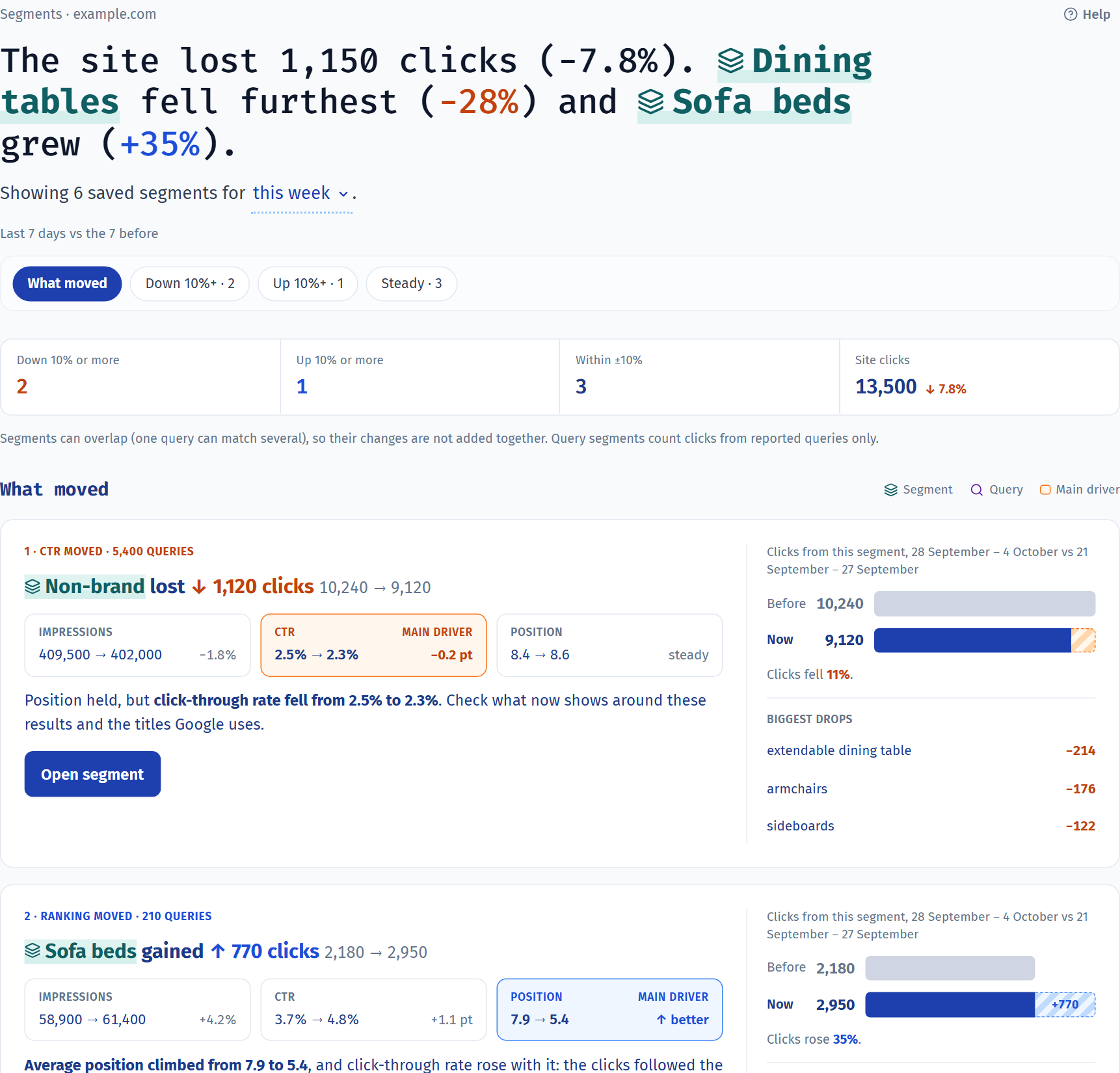
- Period
- In the sentence, pick since you last looked, this week or a date range. Each segment is compared with the same length of time just before.
- Verdict
- One headline for the whole site, plus a count of segments that went down 10% or more, went up 10% or more, or stayed within ±10%.
- Chips
- What moved shows the story cards. Down 10%+, Up 10%+ and Steady each show only the segments in that group, with a count. Suggested segments are under the ⋯ menu.
- Story cards
- The biggest moves, each with its main cause: more or fewer impressions (times you appeared in Google), a change in CTR (the share of people who clicked), or a change in ranking. Each card lists the searches or pages behind the move.
- Smaller moves
- Every other segment in a table, so nothing gets hidden.
Common jobs
Split brand and non-brand trafficStart here. Most reports make a lot more sense once searches for your name are split out. 2 min
- Open Segments. If you haven't set up brand segments yet, you'll see Define brand and non-brand traffic.
- In Brand terms, type the names people use to find you, separated by commas. For a furniture shop called Example, that's
example, example ltd, example furniture. You can add up to 12. - Add common misspellings too, like
exmaple. People search the way they type, typos and all. - Select Create required segments. You'll get two: Brand, for searches that include any of your terms, and Non-brand, for everything else.
People searching your name mostly already know you. Non-brand is usually the better measure of whether your SEO work is paying off.
Track a product range or topicGet one number for all your sofa bed searches, or for every page under /guides/. 3 min
- Select New segment and give it a name you'll recognise later.
- Under What are you grouping?, pick Queries for search terms or Pages for URLs.
- Add a condition, like queries that contains
sofa bed, or pages that contains/guides/. If you know regular expressions, matches pattern lets you use one. - With more than one condition, pick All conditions to match narrowly or Any condition to match broadly.
- Look over the preview. It shows sample matches and their clicks, so you can spot anything that doesn't belong before you save.
- Select Save segment.
Already have a keyword list in a spreadsheet? Select Paste queries or Paste URLs and paste it in, one per line.
Compare segments on one chartSee Brand against Non-brand, or one product range against another, over time. 1 min
- Open Overview with web search selected.
- Select Compare segments and tick the ones you want. All traffic is there too, if you want a baseline.
- Pick one metric in Metrics. Each segment gets its own line.
Find out which part of the site movedClicks dropped this week and you want to know where. 1 min
- Open Segments and pick this week in the sentence.
- Read the story cards. A segment gets a card when its clicks moved by at least 10% and by at least 20 clicks, so small wobbles stay out of the way.
- Look at the searches or pages listed on the card, then select Open segment for the full picture.
- If the main cause is ranking, check Changes for edits to those pages around the same date.
Good to know
- Segments overlap, so don't add them up. The search “example sofa bed” belongs to both Brand and a Sofa beds segment. Add the two totals together and you'll count those clicks twice.
- Query segments add up to less than your total. Google keeps rare and private searches out of Search Console. Query segments can only count the searches Google reports, so Brand plus Non-brand comes to less than your total clicks.
- Comparison periods are fixed. Since you last looked covers up to 7 new days against the week before. A date range is compared with the same number of days just before it.
- Copy as Markdown. The copy icon beside the headline, and the one at the end of each story card's actions, puts it on your clipboard as Markdown: the headline in bold, the sentence under it and the key numbers, with the report and property named on the last line. Paste it straight into Slack, Teams, an email or a doc.
| Conditions per segment | 16 |
|---|---|
| Values in a pasted list | 500 |
| Performance filters (clicks, impressions, CTR, position) | 4 |
| Brand terms | 12 |
Last reviewed and updated