
Help / MCP and AI tools
MCP and AI tools
MCP is a standard way for AI assistants, like Claude, to connect to other tools. Once you connect your assistant to ConsoleKit, you can ask it questions about your Search Console data in plain English. If you give it permission, it can also build dashboards, segments, tests and content for you to review.
What you see
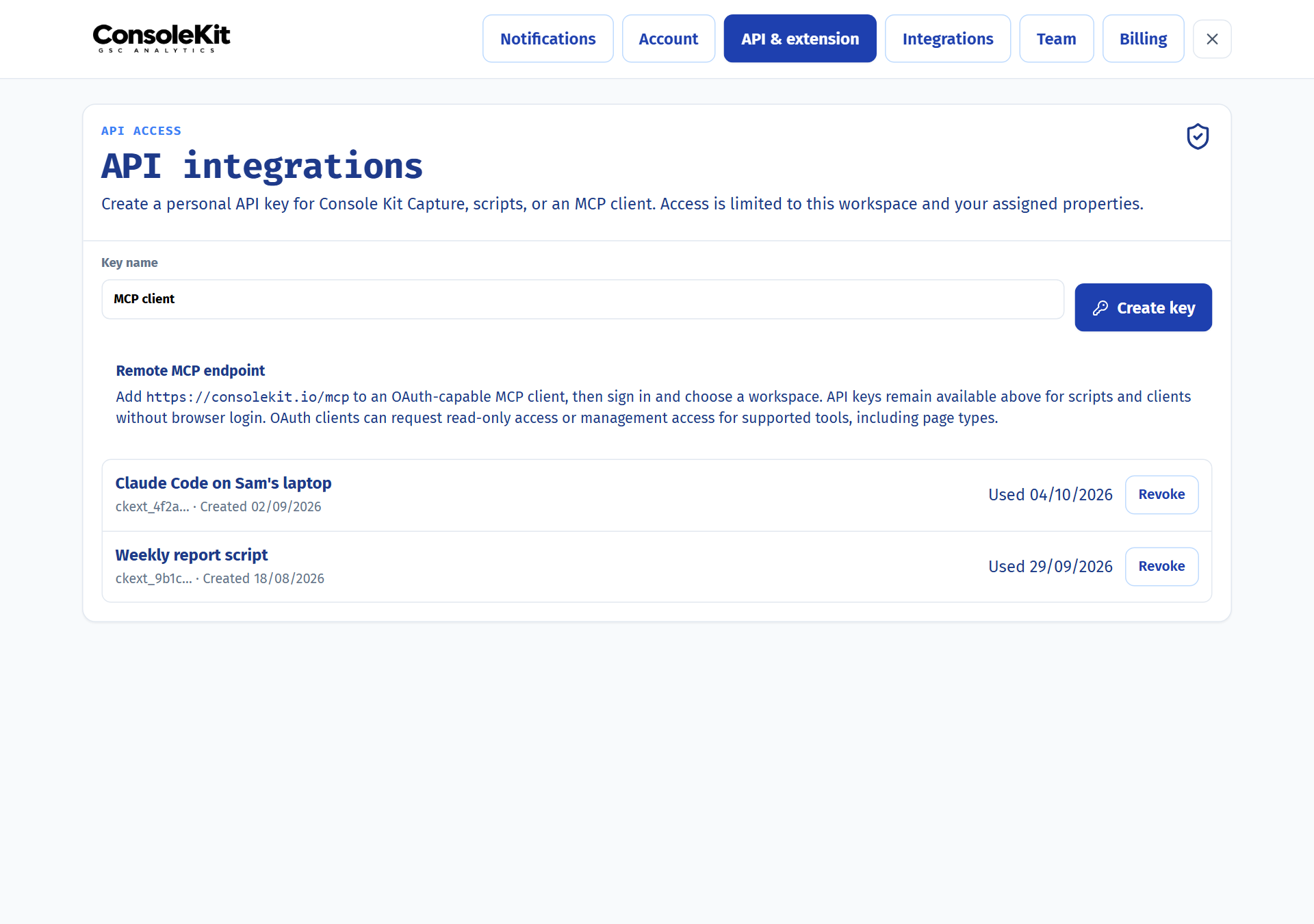
ConsoleKit's MCP address is https://consolekit.io/mcp. You'll find it, along with your API keys, in Settings under API & extension.
- Read access
- Your assistant can look at analytics, page types, SEO tests and dashboards for the properties you can open.
- Write access
- With write access, it can also create and change segments, page types, SEO tests, Content drafts and dashboards.
- Your permissions
- Your assistant can only do what you can do. Every request is checked against your own role and property access, every time.
Common jobs
Connect Claude to ConsoleKitSign in once, then ask Claude questions about your data. 2 min
- In Claude, add a custom connector with the URL
https://consolekit.io/mcp. - Sign in with the Google account you use for ConsoleKit.
- The next screen shows whether Claude asked to read only or to make changes too. Pick the Workspace and select Authorize.
Using a different assistant? Any assistant that supports remote MCP servers connects the same way, with the same URL.
Connect a script or tool with an API keyFor tools that can't sign in through a browser. 2 min
- Open Settings, then API & extension, and create a key.
- Send it in the
Authorizationheader asBearerfollowed by the key. - To cut off access straight away, revoke the key in the same place.
A key acts as you, in the workspace you created it in. Treat it like a password: keep it out of shared code and chats.
Ask questions about your dataGet answers from your own Search Console data, in plain English. 1 min
- Try asking: “Which non-brand queries on example.com lost the most clicks last week?”
- Or: “Compare example.co.uk and example.de over the last 28 days.”
- Your assistant reads the same data you see in the app. Asking questions never starts a crawl or fetches anything live.
Build a dashboard or test with ClaudeTurn what you've found into a report or an experiment. 3 min
- Try asking: “Build a monthly client report for example.com and write the callouts from what you found.”
- The dashboard is saved as a draft. Have a look in Dashboards before you publish it.
- Or ask it to set up an SEO test on the sofa bed category pages. Starting the test is a separate step, so you can check it first.
Edit a Content draft with ClaudeLet Claude make edits while you review each one. 2 min
- Open the draft in Content and select the Claude button in the header for ready-made prompts.
- Paste a prompt into Claude. Its edits appear in your open editor, highlighted.
- Keep or undo each changed paragraph. Earlier versions are always in History.
Good to know
- The demo property is read-only. Assistants can read the demo property, but they can't change it.
- Check what your assistant makes. Assistants make drafts. Dashboards stay unpublished and tests stay unstarted until you, or the assistant, take that next step, so give them a look first.
Last reviewed and updated